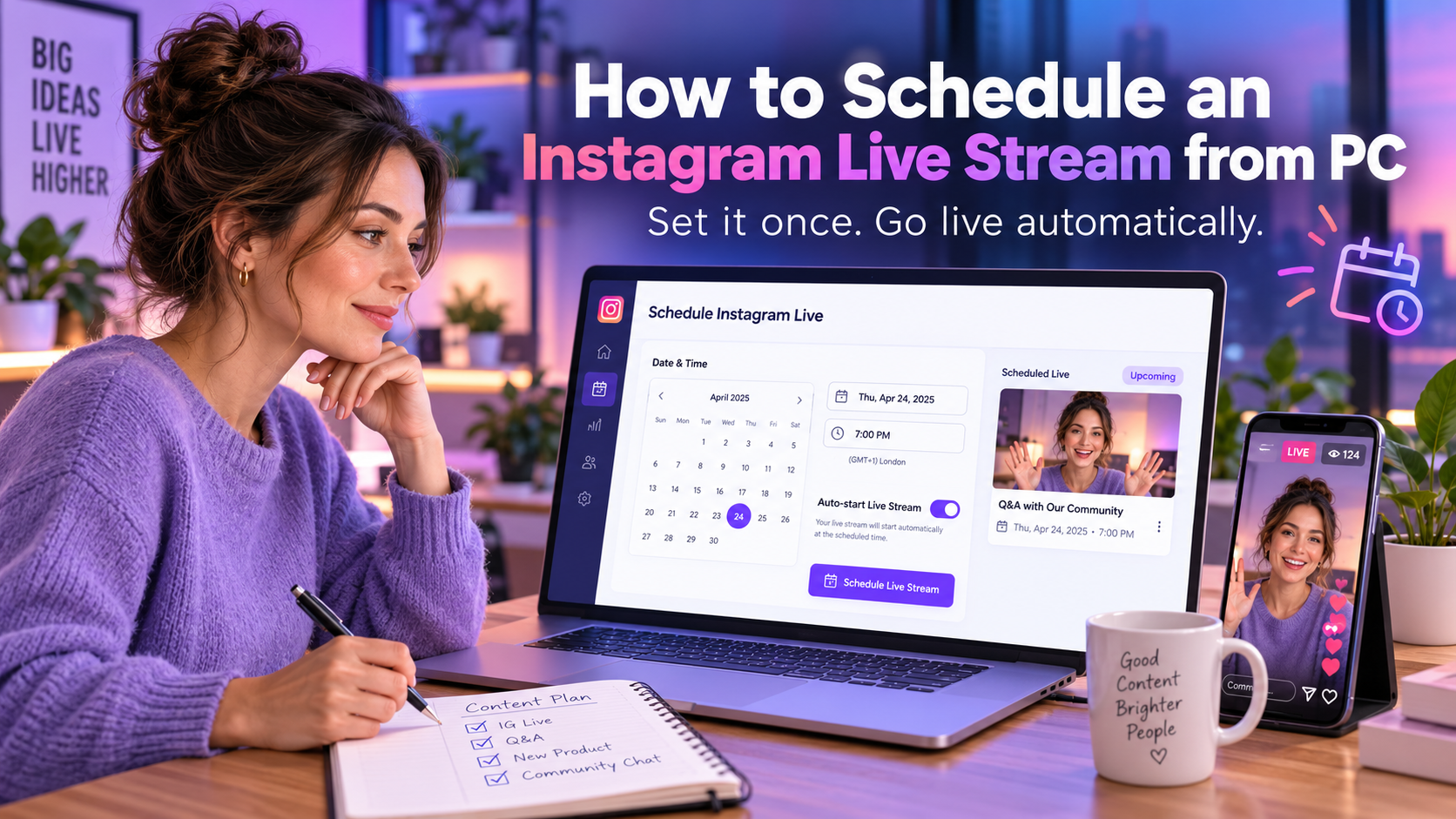
How to Schedule an Instagram Live Stream from PC
TL;DR: Instagram's own scheduler only posts a countdown reminder — when the time comes, someone still has to press “Go Live” from a phone. To schedule an Instagram Live from your PC that actually broadcasts itself, you need a streaming platform like Promovgram: you connect your account, set the date, time and video source, and the platform starts and runs the live session automatically from desktop — no phone, no babysitting.
Why Scheduling Instagram Live from a PC Matters
Live video consistently outperforms static posts for reach and engagement: Instagram notifies followers when you go live, and live sessions surface at the front of the feed while broadcasting. But going live manually means being glued to a phone at the exact broadcast time — fine for a spontaneous Q&A, terrible for launches, classes, webinars or anything with a fixed schedule across time zones.
Instagram added a native “Schedule Live” feature, but it is really a reminder tool: followers see a countdown and can opt in for a notification, yet at the scheduled moment a human must open the app on a phone and start streaming. If you are asleep, on a plane, or running the broadcast from a studio PC, that model breaks.
Desktop-first scheduling solves this. Instead of a phone trigger, the stream is queued on a server: at the scheduled minute, the platform authenticates your Instagram account, opens the live session, and pushes your prepared content (a pre-recorded video, an OBS scene, a YouTube link) to Instagram Live automatically. You can even be asleep in another country while your broadcast runs.
How to Schedule an Instagram Live with Promovgram: Step by Step
1. Connect your Instagram account. Create a Promovgram account and link the Instagram profile you want to broadcast from. New users get a free 7-day trial with full features.
2. Choose your content source. Promovgram streams to Instagram Live from your desktop, so you can pick whatever source fits the broadcast: a pre-recorded video file you uploaded, a YouTube video, or a live RTMP feed from OBS Studio or any encoder (see our guide to getting your Instagram RTMP stream key for that setup).
3. Prepare the broadcast. Set the live title, choose whether comments stay enabled, whether to pin a comment, and whether the stream should be saved to Reels afterwards. If you are using a pre-recorded file, you can rotate or scale it to fill a portrait phone screen and even loop it.
4. Set the date and time. Pick the exact start time for the live. The platform queues the session and starts it automatically — no phone needed at broadcast time.
5. Let it run and watch the analytics. During the stream, Promovgram captures viewers, comments and likes in real time; afterwards you can export the data. That feedback loop is something the native Instagram scheduler simply does not give you.
What to Schedule: Formats That Work
Because desktop scheduling decouples when you broadcast from when you produce, the formats open up considerably:
Pre-recorded “live” broadcasts. Record and edit the session in advance, then stream it as live at the scheduled time. Zero risk of on-air mistakes, full production quality. Our detailed walkthrough explains how to live stream a pre-recorded video on Instagram in seven steps.
Recurring shows. A weekly class, market update or devotional at the same hour every week trains your audience to show up. Produce each episode once, schedule it, and stop rearranging your calendar around broadcast time.
Time-zone-optimized repeats. The same pre-recorded session can go live to different accounts at different hours — and with multi-account streaming, one broadcast can hit several Instagram profiles simultaneously.
Launch moments. Product drops and announcements at an exact minute (midnight launches, event tie-ins) execute precisely because the server starts the stream, not a human thumb.
Instagram's Native Scheduler vs Desktop Scheduling
Use this quick comparison to decide which tool fits the job:
Native “Schedule Live”: free, posts a countdown, notifies followers who opt in — but requires starting manually from the phone app at broadcast time, supports no pre-recorded content, no encoder integration, and no analytics export.
Desktop scheduling (Promovgram): the broadcast starts and runs itself from a server, supports pre-recorded video, YouTube sources and RTMP encoders like OBS, adds rotation/looping/comment controls, saves to Reels, streams to multiple accounts, and exports live analytics. The trade-off is that it is a paid tool after the trial — plans start around $12.49/month.
The two are not mutually exclusive: some creators post the native countdown reminder for audience awareness and run the actual broadcast from the desktop scheduler.
Frequently Asked Questions
Can I schedule an Instagram Live for free?
Instagram's built-in scheduling (the countdown reminder) is free but does not start the broadcast for you. Fully automated scheduling from a PC is a third-party capability — Promovgram includes it in every plan and you can test it end-to-end during the free 7-day trial.
Will Instagram notify my followers about the scheduled live?
When the stream starts, Instagram sends its standard live notifications to followers, just like any other live session. If you also want the pre-broadcast countdown, post the native reminder in parallel.
How long can a scheduled Instagram Live run?
Instagram allows 1 to 4 hours per live session depending on account history; newer device sessions are sometimes limited to 1 hour initially. Plan your content length accordingly and enable looping for shorter videos if you want to fill the window.
Do I need my PC to stay on during the scheduled broadcast?
No. Once the session is queued with its content, the platform runs the broadcast from its servers. Your PC can be off — you only need it to prepare and schedule.
Can I schedule the same live to multiple Instagram accounts?
Yes. Promovgram's multi-stream feature lets one broadcast go to every account your plan allows simultaneously — useful for brands running regional or per-product profiles.
Conclusion
Scheduling an Instagram Live from PC turns live video from a stressful appointment into a production pipeline: prepare once, queue it, and let the broadcast run itself — on time, every time, even while you sleep. If you are ready to put your lives on autopilot, start the free trial and schedule your first automated Instagram Live today.