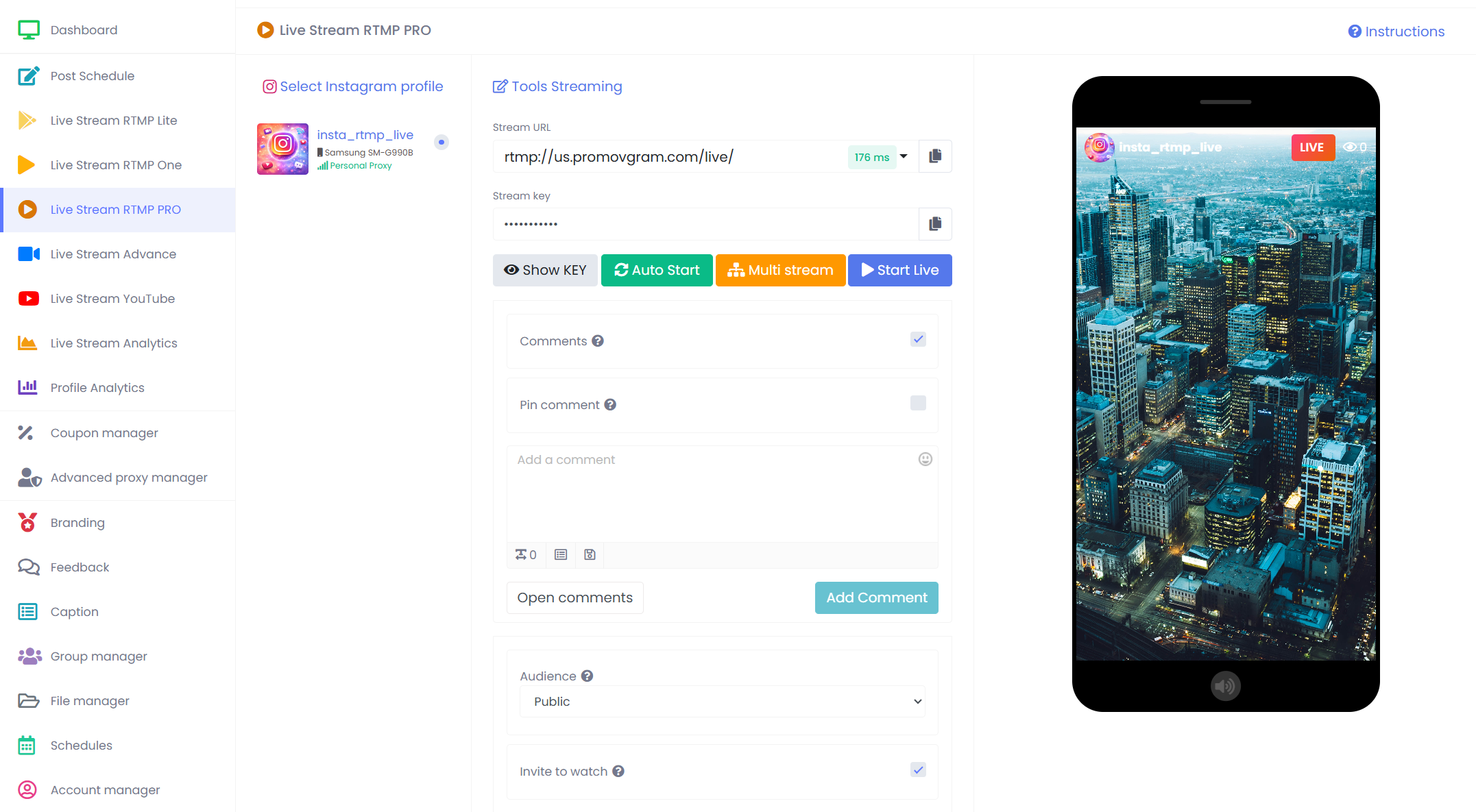
What Is Live Stream RTMP PRO?
Live Stream RTMP PRO is a professional RTMP-based Instagram Live module that routes your stream through Promovgram before it reaches Instagram.
This extra layer gives you more flexibility and unlocks features that go beyond a basic live stream workflow, including:
- fixed stream key support
- stream status verification
- auto-start options
- multi-stream and multi-start workflows
- video and audio customization
- post-live save and publishing controls
In simple terms, Live Stream RTMP PRO helps creators, agencies, and advanced users build a smarter, faster, and more reliable Instagram Live process.
How to Use Live Stream RTMP PRO
1. Open the RTMP PRO module
Select the Instagram account you want to use and open the Live Stream RTMP PRO section.
2. Copy your stream details
Copy the Stream URL and Stream Key from the module and paste them into OBS or another RTMP encoder.
3. Configure your live settings
Before you start streaming, you can adjust video quality, comments, branding, transformations, filters, background audio, and post-live save settings.
4. Start streaming from OBS
Once OBS sends the signal, the platform checks whether the stream is active and ready.
5. Launch the live session
After the signal is confirmed, you can begin the Instagram Live session from the platform.
6. Stop and save the live if needed
When your session ends, you can stop it cleanly and choose whether to save or publish the content using the available post-live options.
Top Benefits of Live Stream RTMP PRO
1. Fixed stream key
One of the biggest advantages of Live Stream RTMP PRO is the stable stream key. You do not need to rebuild your OBS setup every time you go live.
2. More control over live sessions
You can manage stream quality, layout, branding, filters, background audio, and several live interaction settings from one place.
3. Better automation
Live Stream RTMP PRO supports automation features such as Auto Start, Auto Stop, and Multi Start, reducing manual steps during repeated live sessions.
4. Clearer stream monitoring
The module helps you verify whether the incoming stream is active, which reduces errors and gives you better visibility before going live.
5. Stronger workflow for professional use
If you manage multiple accounts, run branded campaigns, or go live often, Live Stream RTMP PRO offers a more scalable workflow than a simple RTMP connection.
Live Stream RTMP PRO Settings Explained
Below is a practical explanation of the main Live Stream RTMP PRO settings and what each one does.
1. Connection settings
Stream URL. The server address used by OBS to send your live stream.
Stream Key. The unique identifier for your live stream. In RTMP PRO, this key is designed to remain stable for easier repeated use.
RTMP Server / RTMP Host. This setting is connected to how the platform manages start checks, auto-start functions, and multi-start workflows.
2. Live interaction settings
Comments. Turns live comments on or off during the session.
Requests. Controls whether requests to join the live are allowed.
Pin Comment. Keeps an important message visible during the live stream.
Comment Text. The message field used before posting a comment into the live.
Add Comment. Publishes the prepared comment during the session.
Open Comments. Opens the comments view so you can monitor audience interaction more easily.
3. Video and layout settings
Livestream Video Quality. Controls output resolution and frame rate. Available options include 720p 30FPS, 720p 60FPS, 1080p 30FPS, and 1080p 60FPS.
Transform. Changes video orientation or placement. Common options include no transform, 90 degrees clockwise, 90 degrees counter clockwise, Scale to Top, and Scale to Center.
Background Color. Fills empty space when a layout transform changes how the video appears on screen.
Background Image. Places a custom image behind the live video for a more branded look.
Filter Effects. Applies visual effects to the stream. Examples include Clarendon, Juno, Vignette Effect, Sepia Effect, and Black and White Effect.
Logo. Adds brand identity directly into the live stream.
Logo Transparency. Adjusts logo opacity so the branding is visible without overpowering the video.
Logo Position. Defines where the logo appears, such as Bottom Right, Bottom Center, or Full Screen.
4. Audio settings
Background Audio. Lets you add audio that plays behind your live stream, which is useful for branded or looping background sound.
Background Audio Volume. Controls how loud the background audio plays compared to the main stream audio.
5. Live publishing and save settings
Live Title. Sets the title of the live session before publishing.
Auto IGTV. Activates automatic save or post-live publishing behavior after the stream ends.
IGTV Title. Defines the title used when the saved live is published after the session.
IGTV Cover. Lets you choose the cover image for the saved live content.
Post IGTV After Stop. Allows publishing choices to appear during the stop confirmation flow.
Share To Feed. Adds an option to share the saved live content more broadly after the session ends.
Caption. Sets the description text for the saved live version.
Post IGTV Title After Stop. Lets you define a final publishing title after the stream has been stopped.
6. Automation and control settings
Auto Wave. Enables automatic wave actions during the live session.
Auto Stop Live. Lets you define a stop time or duration so the live can end automatically.
Accept Policy. Confirms required policy acceptance before the live starts.
Auto Start. Allows the live workflow to begin automatically when the RTMP signal becomes active.
Multi Stream / Multi Start. Supports running the same live process across multiple selected accounts.
7. Advanced RTMP PRO workflow settings
Some advanced RTMP PRO workflows also include extended settings used in manual start, auto-start, and multi-start processes.
Audience. Defines who the live is intended for, such as public, practice, fan club, close friends, or other audience options.
User Invite. Used when a practice or invite-based live session includes a specific invited user.
User Invite Option. Turns invite-based behavior on or off.
Filter. The internal name for the visual effect or filter applied to the live stream.
Logo File. Refers to the stored logo asset used by the system during the live workflow.
RTMP PRO vs RTMP One
| Feature | RTMP One | RTMP PRO |
|---|---|---|
| Stream key | New key for each live | Fixed key |
| Customization | Basic | Advanced |
| Automation | Limited | Higher |
| Multi Start | No | Yes |
| Best for | Basic live streaming | Frequent, branded, or advanced live streaming |
Compared with RTMP One, Live Stream RTMP PRO offers stronger control, better repeatability, and a richer live workflow for serious users.
FAQ About Live Stream RTMP PRO
Does Live Stream RTMP PRO keep the same OBS key?
Yes. A fixed stream key is one of the main reasons users choose RTMP PRO for repeat live sessions.
Is Live Stream RTMP PRO only about automation?
No. It also includes more control over video quality, branding, audio, layout, comments, and post-live publishing.
Is RTMP PRO good for branded live streams?
Yes. Features such as logo placement, filters, background image, and background audio make it a strong option for branded broadcasts.
Why is RTMP PRO better for frequent live sessions?
Because it reduces setup time, supports automation, and keeps your streaming workflow more consistent from one session to the next.
Can Live Stream RTMP PRO be used with multiple accounts?
Yes. Multi Start and multi-stream functions make it more suitable for agencies or users managing more than one Instagram account.
Who should use Live Stream RTMP PRO?
It is best for creators, marketers, agencies, and advanced users who want a more reliable and professional Instagram Live workflow.
Final takeaway
Live Stream RTMP PRO is more than a basic streaming tool. It is a complete live control module built for users who need repeatability, flexibility, and professional live streaming features.
With a fixed stream key, stronger automation, better branding tools, video and audio controls, and multi-account support, it offers a more advanced workflow than a simple direct RTMP setup.
If you want a more efficient, scalable, and professional Instagram Live process, Live Stream RTMP PRO is the better choice.